Fixing Common Resume Formatting Mistakes
- Consistent fonts, proper margins, and clean spacing directly impact readability and ATS parsing

Your resume gets 6 seconds before a hiring manager moves on. But before any human even sees it, your resume faces the real gatekeeper: the Applicant Tracking System, or ATS. A single formatting mistake can delete your qualifications from consideration, or worse, render your resume unreadable to the system entirely. The good news is that most formatting errors are preventable and fixable with straightforward adjustments.
Photo by Sora Shimazaki from Pexels
TL;DR
- Consistent fonts, proper margins, and clean spacing directly impact readability and ATS parsing
- Common mistakes include mixed font styles, decorative elements, tables, and non-standard bullet points
- ATS systems prefer .docx or .txt files over PDFs; avoid headers, footers, and graphics
- Use standard fonts (Arial, Calibri, Times New Roman) at 10-12 point size throughout
- Test your resume with an ATS preview tool before submitting to catch hidden formatting problems
Most job seekers don't realize they're sabotaging their own resumes with formatting choices that seem harmless. Italics in job titles, color-coded sections, or a fancy template from a design site can tank your chances before a real person reviews your work. The issue runs deeper than aesthetics. Formatting errors create two separate problems: human readers struggle with cluttered layouts, and ATS software chokes on non-standard structures.
The solution is simple: strip away the noise and build a resume that serves both audiences. This guide walks you through identifying the mistakes you're likely making and fixing them with concrete, tested approaches.
What Are Common Resume Formatting Mistakes?
Your resume probably suffers from at least one of these issues. They're so common that hiring managers expect them, but that doesn't make them acceptable.
Inconsistent fonts and sizes are the biggest culprit. You might use Helvetica for your name, Arial for section headers, and Times New Roman for bullet points. Each switch confuses both ATS and human readers. Worse, some ATS systems interpret font changes as garbled text or fail to parse certain fonts entirely.
Decorative elements like horizontal lines, graphics, icons, or colored backgrounds look professional in design software but wreak havoc on ATS parsing. That clever divider between sections? The system might read it as a typo or separator that breaks text flow. Icons for skills or languages become invisible.
Tables and columns are structural nightmares for ATS. A two-column layout that looks clean on paper becomes unreadable gibberish to the system. Text gets jumbled, dates disappear, or entire sections vanish.
Non-standard bullet points cause similar chaos. Fancy symbols, dashes, or custom bullets get stripped or misread. Standard hyphens or asterisks work. Everything else is a gamble.
Headers and footers containing your name, page numbers, or other info are lost by most ATS systems. They parse the main body only, so anything in headers vanishes.
Unusual file formats break the pipeline entirely. PDF with embedded fonts, image-heavy layouts, or proprietary formats don't import cleanly. The system either fails to parse it or converts it incorrectly.
Excessive whitespace or too-tight spacing creates two opposite problems. Too much whitespace and your resume looks sparse, potentially getting cut off if the ATS expects a certain density. Too-tight spacing and the lines blur together, becoming unreadable.
"The font or design you choose to apply to your resume may greatly impact the readability.">, 7 Common Resume Mistakes and How to Fix Them
How to Ensure Consistent Fonts and Layout

Consistency is the foundation of a readable resume. Pick one font and stick with it throughout the entire document.
Choose a professional, widely supported font. Arial, Calibri, Times New Roman, and Verdana are the safest choices. They're installed on virtually every computer and render correctly in every ATS system. Avoid trendy fonts like Futura, Garamond, or anything with a script style. These fonts may not transfer correctly when imported into an ATS.
Set one size for the entire body text. Use 10 or 11 point for standard content. 12 point is acceptable but can make your resume run long. Anything smaller than 10 point becomes difficult to read on screen.
Vary size only for your name and section headers. Your name can be 14-16 point. Section headers (Experience, Education, Skills) should be 12-13 point, bold. This hierarchy is enough. Don't create four different font sizes.
Use bold and italics sparingly for emphasis. Bold works for your name, job titles, and section headers. Don't bold entire bullet points. Italics can highlight company names or degree titles, but don't italicize general content.
Left-align everything. Center-aligned text, especially your name, often gets misread by ATS. The system expects left-aligned content.
Maintain consistent margins. Set all margins to 0.5 or 0.75 inches. This gives you breathing room without wasting space. Narrow margins are tempting to fit more content, but they make the resume harder to read and can cause text to get cut off.
Keep line spacing at 1.0 or 1.15. Double-spaced resumes look empty. Single spacing lets the text breathe while maximizing your space.
What Are Best Practices for Using Whitespace Effectively?

Whitespace is your ally. It's not empty space; it's the architecture that makes your resume scannable.
Space between sections should be consistent. Use one blank line between major sections (Experience and Education, for example). Two blank lines between sections is excessive. The goal is visual separation without gaps that waste real estate.
Space after section headers helps readers locate content quickly. A single blank line after "EXPERIENCE" before your first job entry creates clear hierarchy.
Bullet point spacing should be tight but readable. Keep 0.15 inches between bullet points within the same role. More space and you eat up your allotment; less space and they blur together.
Single-line spacing within multi-line bullets keeps related information connected. If a bullet point wraps to two lines, don't add extra space between them. Keep them as one unit.
Avoid vertical alignment tricks. Don't use tabs to align dates to the right of the page. Tab alignment breaks in ATS imports. Instead, place dates on the same line as the job title, separated by spaces or a simple dash. For example: "Senior Developer - ABC Corp, Jan 2020 - Dec 2023" keeps everything on one line and ATS-safe.
Don't use tables for layout. Even if you see templates with two-column tables for dates and titles, skip it. Single-column format is safest.
How to Select ATS-Friendly Formats
File format is the first hurdle. The wrong format means your resume never even gets parsed correctly.
.DOCX is the gold standard. Microsoft Word's .docx format is the most widely supported by ATS systems. It preserves basic formatting without being proprietary or overly complex. Create your resume in Word and save it as .docx.
.PDF should be avoided unless specifically requested. PDFs are difficult for ATS to parse, especially if they contain embedded fonts or images. If a job posting says "submit PDF," follow that instruction. But given a choice, .docx is safer.
.TXT as a fallback. Plain text files (.txt) are always readable by any system, but you lose all formatting. Use .txt only if the ATS explicitly requires it or if your .docx keeps getting mangled.
Never submit .pages, .odt, or other proprietary formats. These are incompatible with most ATS systems and will either fail to import or import incorrectly.
File naming matters. Name your file "FirstName_LastName_Resume.docx" or similar. Avoid generic names like "Resume.docx" or "CV.docx" if you're sending multiple applications. A clear, identifiable name helps hiring managers locate your resume.
Avoid password-protected files. Some ATS systems can't parse password-protected documents. Keep your resume open and unencrypted.
The Fixing Process at a Glance
Understanding the steps to fix your resume makes the task manageable. Here's the structured approach:
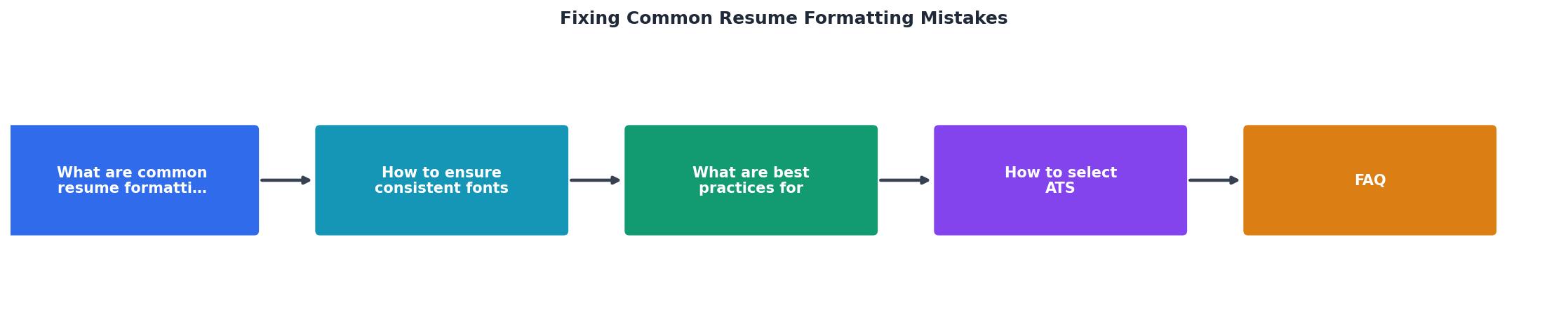
Custom Visual: Resume Formatting Checklist
To help you visualize the formatting standards, here's an interactive reference showing ideal resume formatting specifications:
✓ Resume Formatting Standards
Testing Your Resume Before You Submit
Before sending your resume anywhere, test it for ATS compatibility. Several free tools let you upload your resume and see exactly how an ATS parses it.
Use an ATS parser tool. Websites like Jobscan or Resume Worded let you paste your resume and receive a compatibility score. They show you how the ATS sees your document, highlighting any parsing errors or formatting problems.
Save and re-open your file. After creating your resume, save it, close it, and reopen it in Word. Check that all formatting survived the save cycle. Sometimes fonts shift or spacing gets compressed unexpectedly.
Test it on a different computer. Font and formatting issues sometimes only appear on specific systems or with different versions of software. If possible, open your resume on another computer to confirm it looks consistent.
Print it and read it. Print a physical copy and review it for readability. If the printed version is hard to scan, the ATS will struggle too. Conversely, if it reads well on paper, it'll likely work digitally.
Resume Formatting Checklist
Your progress is saved automatically in your browser.
FAQ
Frequently Asked Questions
A formatted resume isn't just about looking professional. It's about respecting the process enough to meet the system halfway. You're controlling the one thing you can control: clarity and consistency. That simple discipline opens doors.
Additional Resources
- Resume Formatting and Common Errors - Avoid Common Resume Errors: Using passive language instead of action verbs Using full sentences and narrative style, instead of action-driven bullet points
- 6 Common Resume Mistakes (and How to Fix Them) - What works better: Keep formatting simple, use clear section headings and maintain consistent spacing. Proofread carefully to eliminate spelling and grammar ...
- 7 Common Resume Mistakes and How to Fix Them - 7 Common Resume Mistakes and How to Fix Them · 1. Using the Same Resume For Several Job Applications · 2. Using a Strange or Unorthodox Resume Formatting or ...
Get the 356 complete recruitment audit (free PDF)
Download the free PDF with 356 reasons hiring stalls, plus optional daily email tips. No credit card.
Get the free PDF 356 reasons · Free download